

Overview
This guide provides an overview of the Agency Detail dashboard in Lead Pursuits. It explains the data, tables, and visualizations available on the dashboard and how they help users analyze procurement activity for a specific agency.
Accessing the Agency Detail Dashboard
You can access the Agency Detail dashboard in two ways:
From the Leads Dashboard
- Click an Agency Name in the Leads dashboard to open the Agency Detail dashboard.
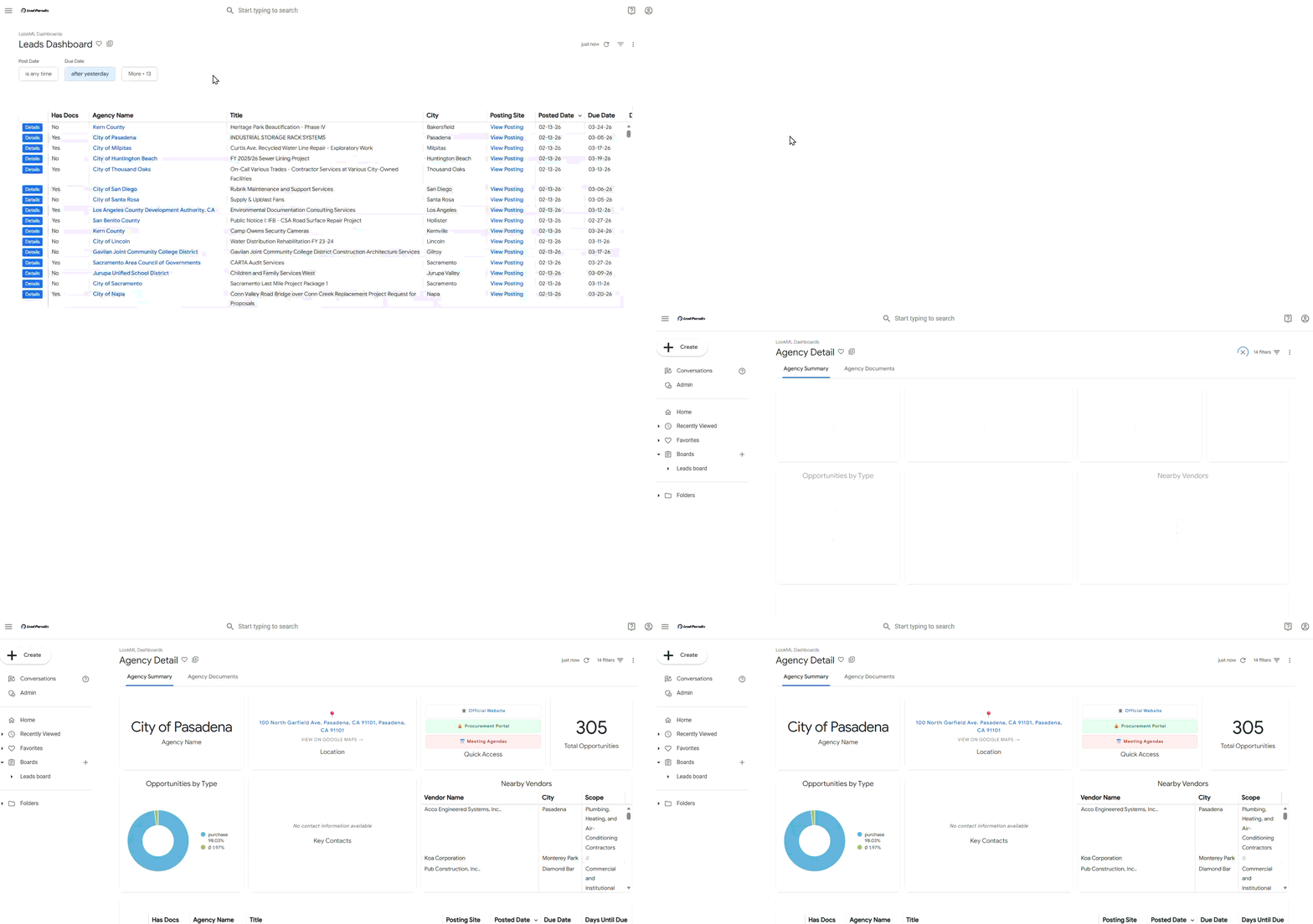
Figure 1: Agencies Detail dashboard
From the Side Navigation Menu
- Open the side navigation menu.
- Expand the Folders dropdown.
- Click LookML Dashboards to view the list of available dashboards.
- Select the Agency Detail dashboard.
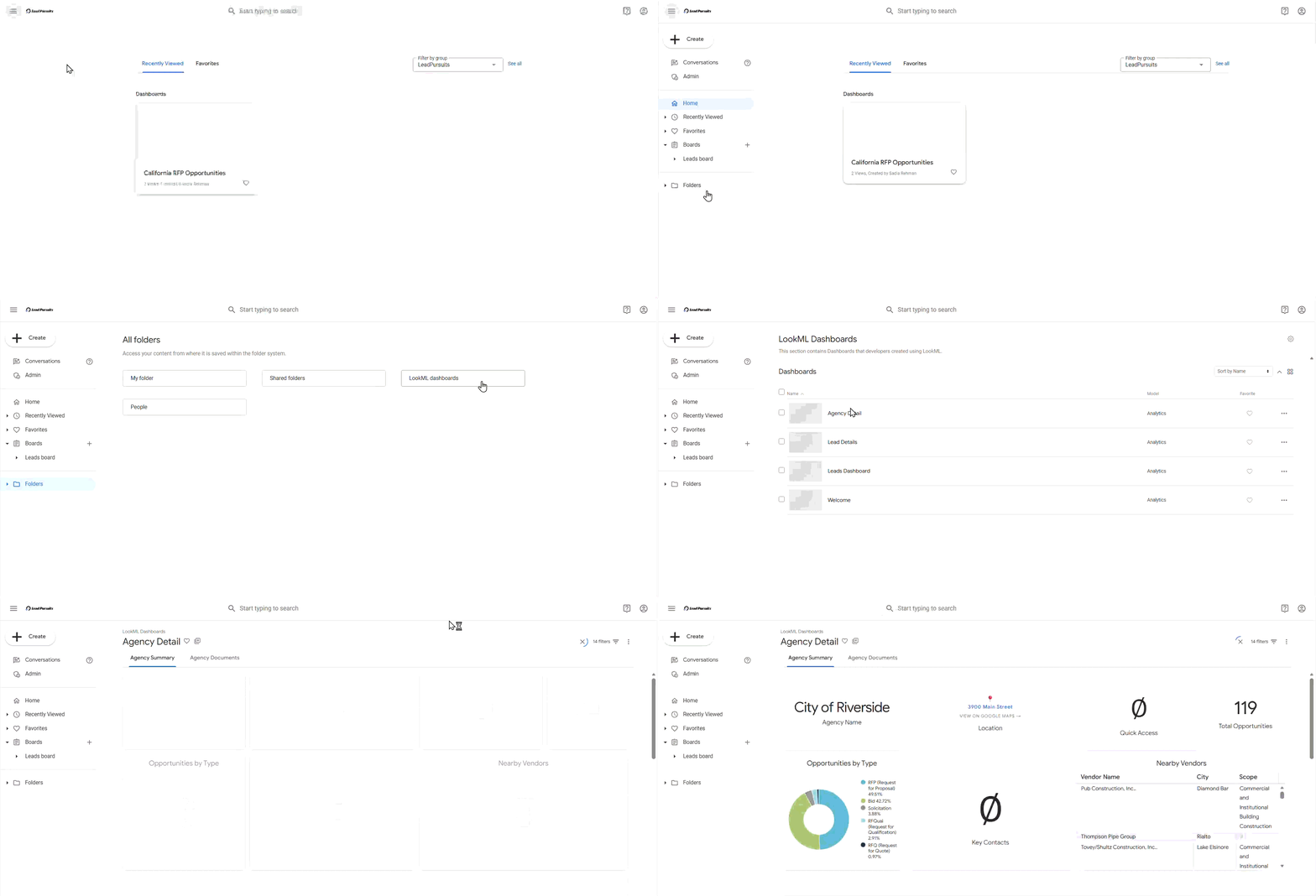
Figure 2: Agencies Detail dashboard
Dashboard Structure
The Agency Detail dashboard contains two primary tabs:
- Agency Summary
- Agency Documents
Agency Summary Tab
The Agency Summary tab provides a comprehensive overview of the selected agency.
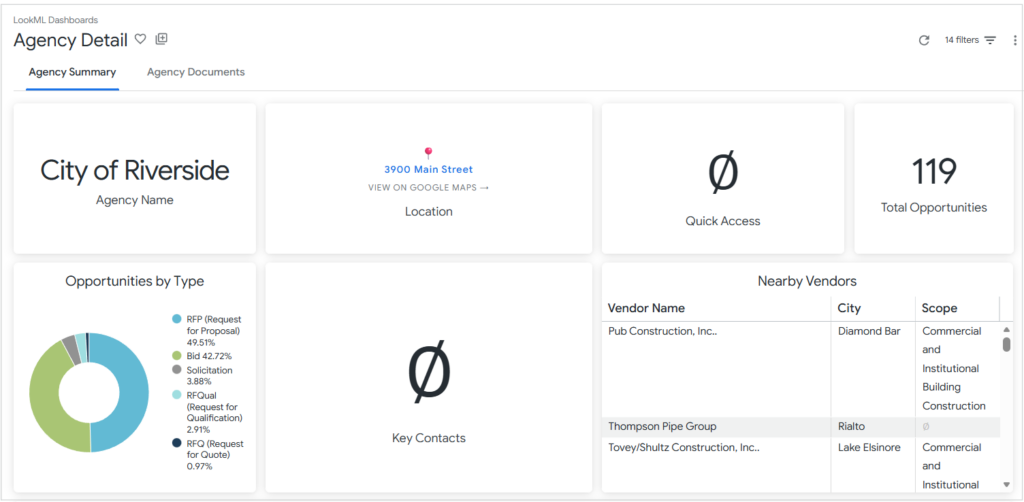
Figure 3: Agency Summary tab
Agency Name
The agency name is displayed prominently at the top of the dashboard, indicating the current agency being viewed.
Location
The Location section includes:
- A pinned location map view
- A View on Google Maps button
Clicking the button redirects users to the agency’s location in Google Maps for further navigation and details.
Quick Access
The Quick Access section displays any available external links associated with the agency (if configured), such as:
- Official agency website
- Procurement portal
- Related external resources
If no links are configured, this section may appear empty.
Total Opportunities
This metric displays the total number of opportunities posted by the agency (for example, 119).
Opportunities by Type (Pie Chart)
This visualization shows the distribution of opportunities by bid type, such as:
- Request for Proposal (RFP)
- Request for Quote (RFQ)
- Bid Solicitation
- Other formal and informal procurement types
This chart helps users understand how the agency structures its procurement activity.
Key Contacts
The Key Contacts section lists available agency contacts relevant to procurement activity.
This may include contact names and related information, depending on available data.
Nearby Vendors
The Nearby Vendors table displays vendors located near the agency.
Columns include:
- Vendor Name
- City
- Scope
This helps users identify potential vendors operating in proximity to the agency.
Agency Opportunities Table
This table lists all opportunities posted by the selected agency.
Columns include:
- Details – Opens the full Lead Details view filtered for the selected opportunity
- Has Docs – Indicates whether documents are attached to the lead
- Agency Name
- Title
- Posting Site – Contains the source URL of the bid posting
- Posted Date
- Due Date
- Days Until Response Window Closes
This table functions similarly to the Leads table, allowing users to review and navigate to detailed opportunity information.
Category-Wise Distribution
This section provides a breakdown of opportunities by industry classification standards.
The table includes:
- Standard (e.g., NIGP or NAICS)
- Standard Code
- Description
- Sector Code
- Sector Title
- Total Leads
The Total Leads column is displayed alongside a horizontal bar visualization to provide a visual comparison across categories.
This section helps users analyze how an agency’s opportunities are distributed across sectors and classification codes.
Agency Documents Tab
The Agency Documents tab displays documents associated with the selected agency.
If documents are available, they will be listed here for review and download.
If no documents are associated with the agency, this tab may appear empty.
Agency Filter Behavior
The Agency Detail dashboard includes a single dashboard-level filter: Agency_name.
When you access the Agency Detail dashboard from the Leads table, the Agency_name filter is automatically applied based on the selected agency. This ensures the dashboard opens with data scoped to that agency.
The Agency_name filter supports standard text operators as described in Filtering Leads Effectively.
Users can change the selected agency at any time by:
- Opening the Agency_name filter
- Selecting a different agency from the dropdown list
- Applying the updated filter to refresh the dashboard data
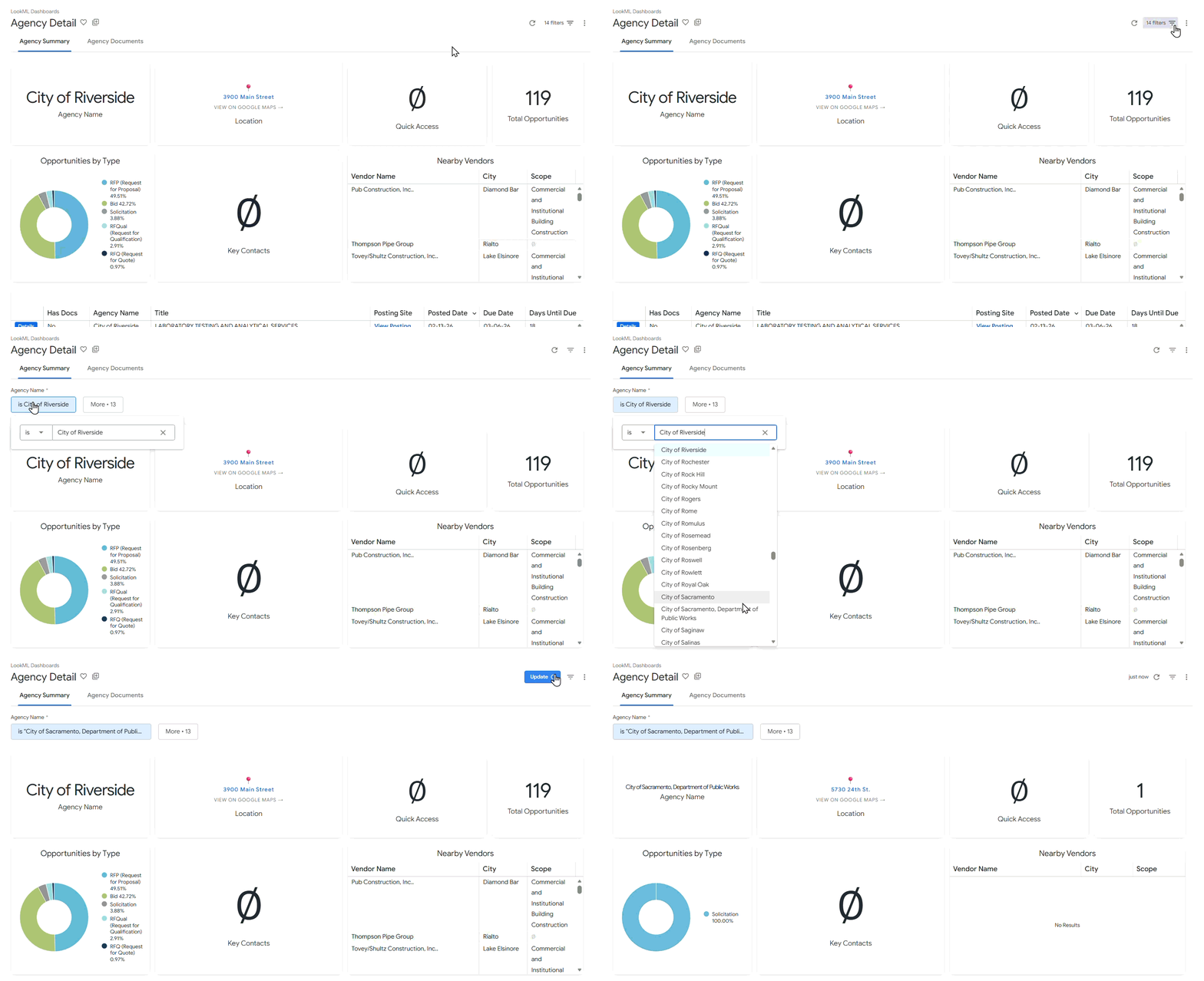
Figure 4: Agency filtering
Dashboard Options
The dashboard-level menu (three-dot icon in the dashboard header) provides additional actions, including:
- Show dashboard details
- Copy LookML dashboard
- Download
- Schedule delivery
- Add to a board
- Get embed URL
- Get link
- Reset filters
- Edit tiles time zone
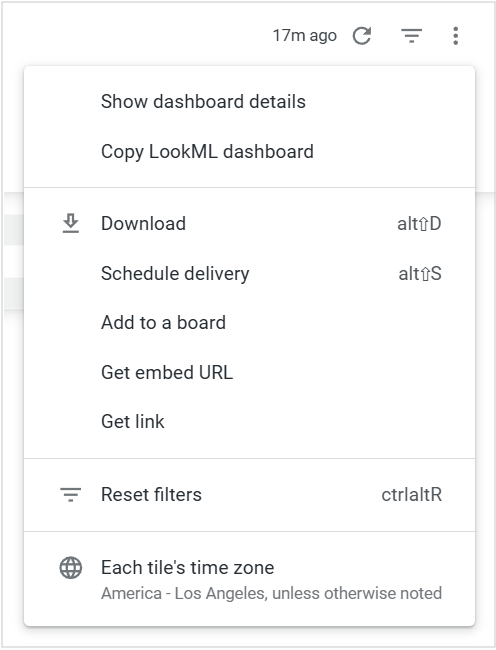
Figure 5: Dashboard actions
These options allow users to manage, share, and customize how the dashboard is viewed and delivered.
Alerts
Alerts can be configured on supported visualizations within the Agency Detail dashboard using the bell icon.
For step-by-step instructions, refer to Setting Up Alerts.
FAQs
Can I view multiple agencies at the same time in the Agency Details dashboard?
No. The Agency Details dashboard displays data for one agency at a time. To compare agencies, use the Agencies visualization on the Leads Dashboard.
Contact Us
For further assistance, Contact Us.