

Overview
This guide provides an overview of the Lead Details dashboard in Lead Pursuits. It explains the information available for an individual opportunity and how the dashboard helps users review detailed procurement data for a specific lead.
Accessing the Lead Details Dashboard
The recommended way to access the Lead Details dashboard is from the Leads Dashboard.
- Click a Lead Title in the Leads table.
- Select View Lead Details to open the Lead Details dashboard.
Lead Summary Header
At the top of the dashboard, a summary section displays key identifying information for the selected lead, including:
- Project Title
- Agency Name
- City
- Posted Date
- Due Date
- Core Need/Objective
- Source Link
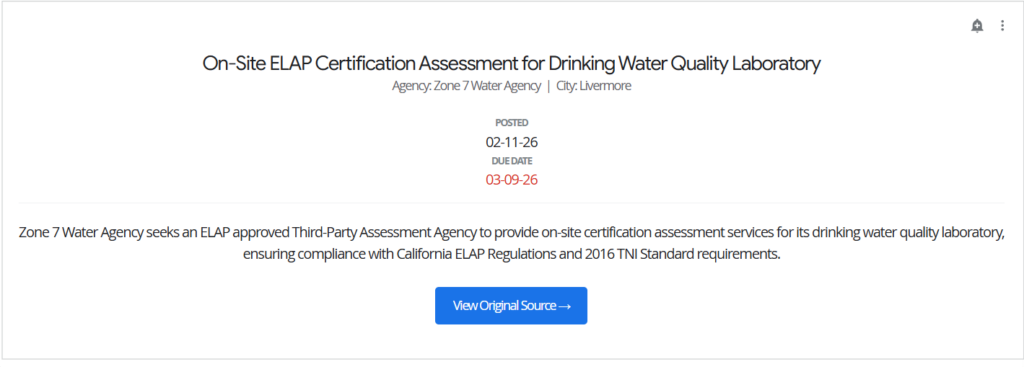
Figure 1: Lead details header
Lead Information Table
The Lead Information table presents essential details about the opportunity, including:
- Standard
- Code
- Description
- Sector Code
- Sector Title

Figure 2: Lead information
Project Scopes
The Project Scopes section displays detailed scope information for the lead in a table format. Each row represents a scope entry and provides descriptive text outlining the work requirements.
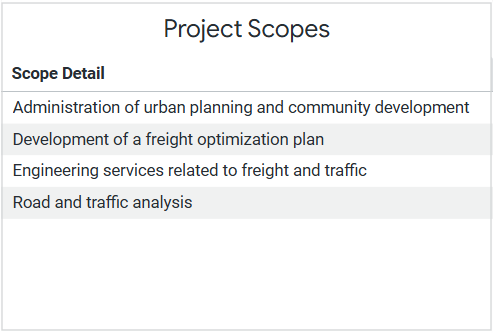
Figure 3: Project Scopes table
Quality Indicators
The Quality Indicators table highlights notable terms or conditions identified in the opportunity documents. It includes:
- Quality Indicator / Red Flag
- Indicator Type
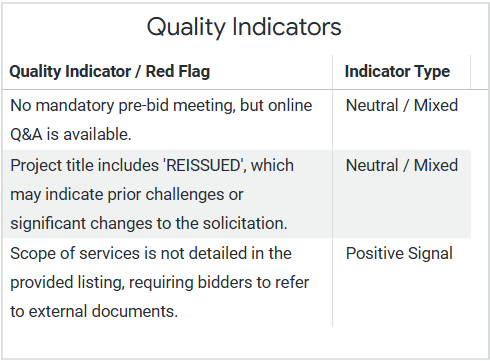
Figure 4: Quality Indicators table
Miscellaneous Dates
The Miscellaneous Dates table displays supplementary deadlines related to the opportunity, such as:
- Bid Due Date
- Q&A Deadline
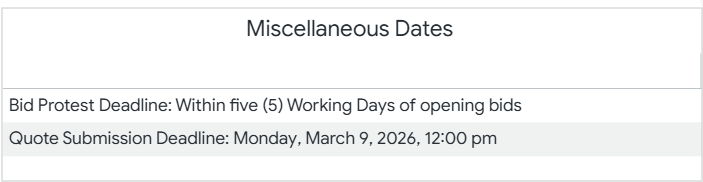
Figure 5: Miscellaneous Dates table
Eligibility Indicators
The Eligibility Indicators section lists participation requirements or conditions associated with the opportunity. Examples include:
- Bid bond requirements
- Local business or compliance requirements
Each requirement is displayed as a separate row.
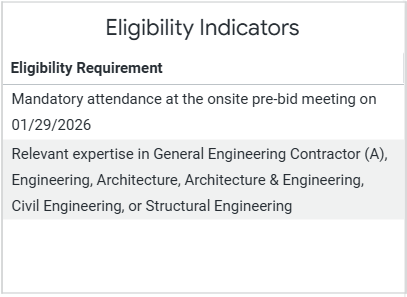
Figure 7: Eligibility Indicators table
FAQs
Can I set alerts on visualizations in the Leads Details dashboard?
No. Alerts cannot be created on the Lead Details dashboard because its visualizations do not include a numeric measure or table calculation. At least one numeric value is required to set up an alert.
Contact Us
For further assistance, Contact Us.