

Overview
This guide explains how to apply filters on the Leads Dashboard to narrow results, combine conditions, and find relevant opportunities efficiently.
Access the Leads Dashboard
- Go to the Lead Pursuits portal and log in using your account credentials.
- Locate the Quick Start: Default Dashboards section on the homepage.
- Click the Leads Dashboard link. The system will redirect to the Leads Dashboard page.
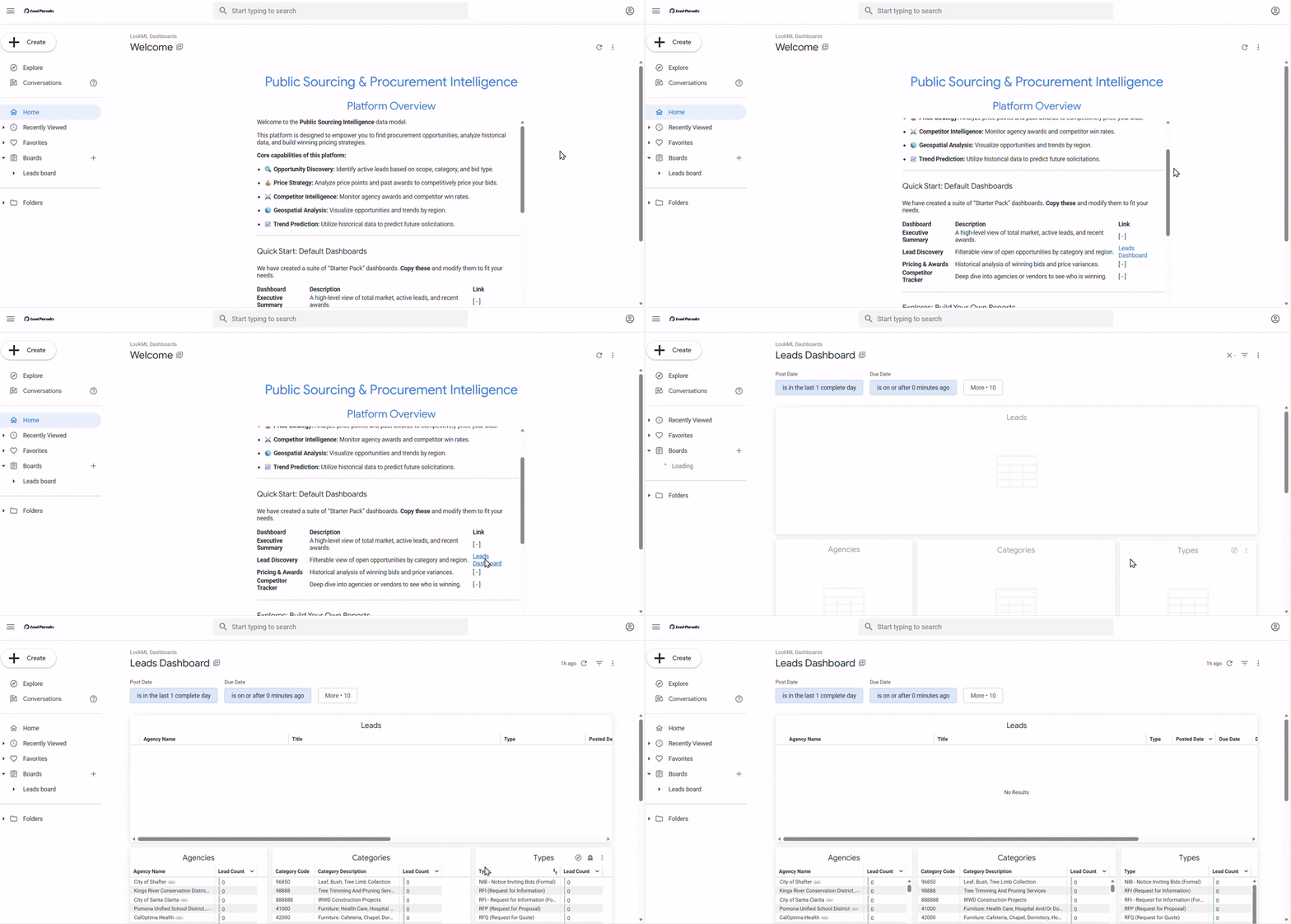
Figure 1: Leads Dashboard via homepage
Alternatively,
- Open the side navigation menu.
- Expand the Folders dropdown.
- Click LookML Dashboards. This will display the list of all available dashboards.
- Click Leads Dashboard.
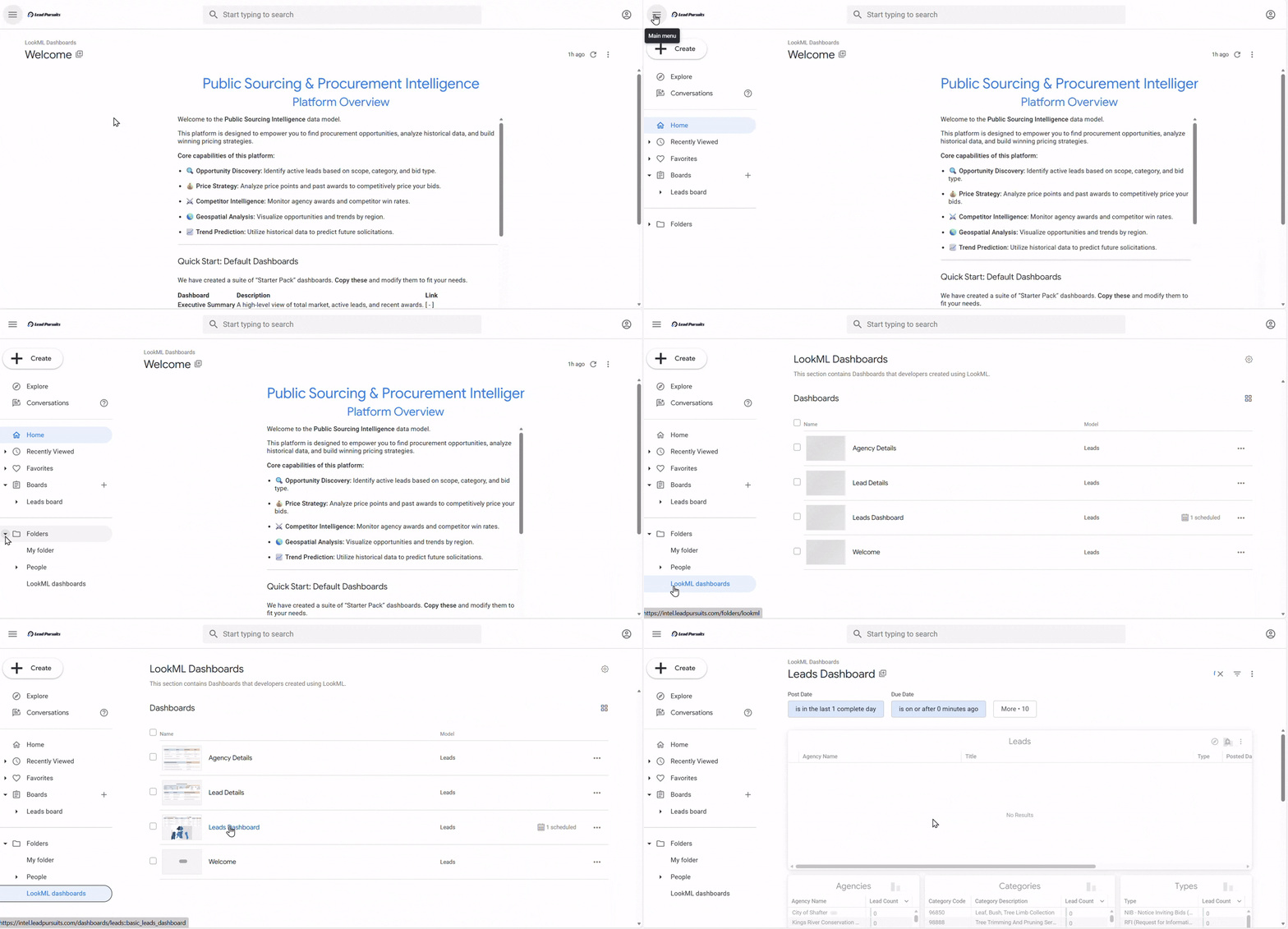
Figure 2: Leads Dashboard via LookML dashboards
Apply Filters on the Leads Dashboard
Consider an example scenario where you need to find contract opportunities that meet the following criteria:
- Post Date: Within the last 30 days
- Agency Name: Either “City of Phoenix” or “City of Beverly Hills”
- Category Description: Contains “Construction”
Step 1: Access Available Filters
- Locate the filter fields at the top of the dashboard (Post Date, Due Date, etc.).
- Click the More button (shows “More . 10”) to view additional filter options.
Note: For more details on how dashboard-level filters work, see the Looker documentation on using dashboard filters.
Step 2: Apply the Posted Date Filter
- Click the Post Date filter field.
- Select is in the last from the operator dropdown.
- Enter 30 in the number field.
- Select complete days from the time unit dropdown.
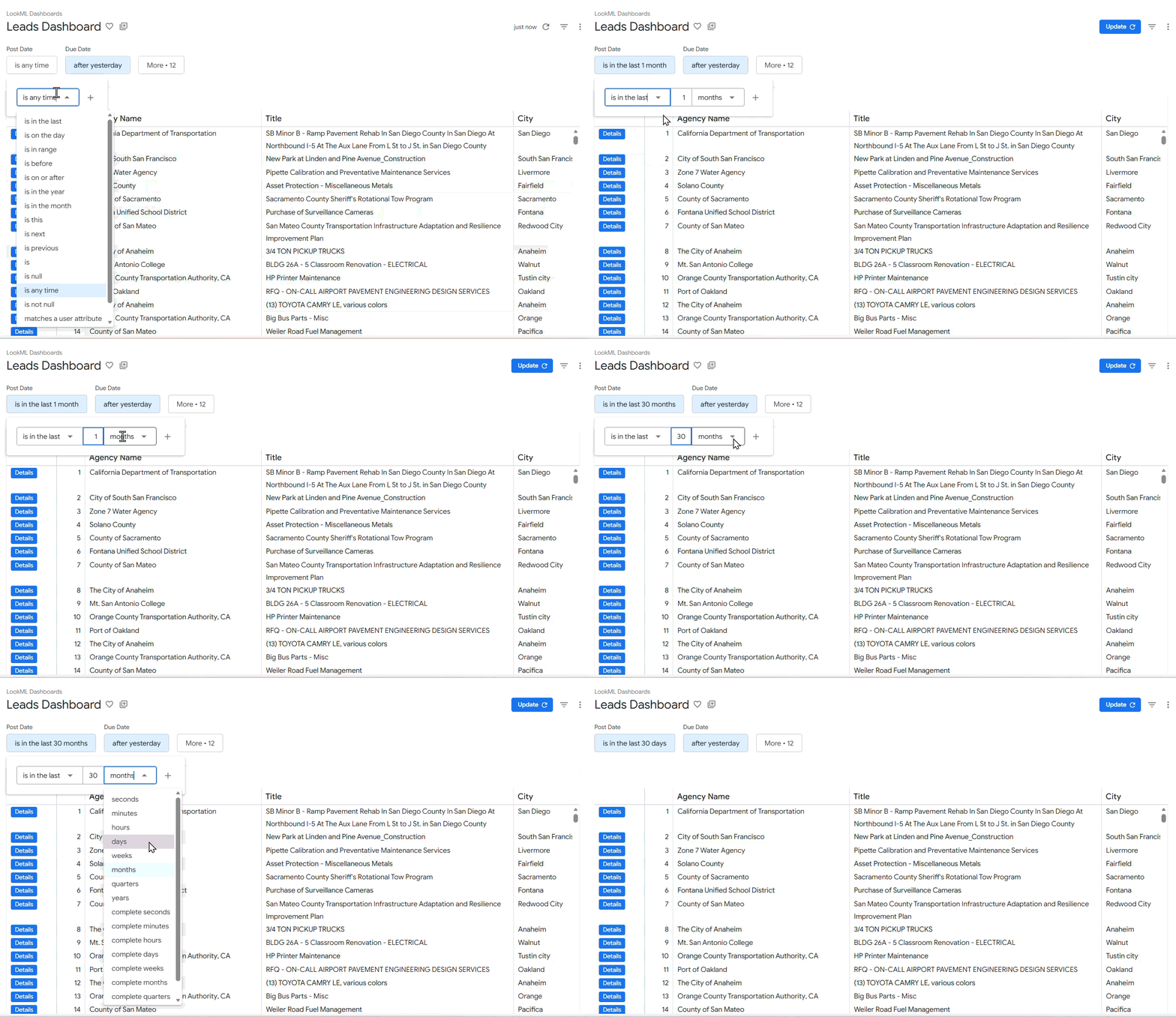
Figure 3: Applying Post Date filter
Step 3: Apply the Agency Name Filter (OR Condition)
- Click the Agency Name filter field.
- Select is from the operator dropdown.
- Enter City of Phoenix in the value field.
- Click the + (plus) icon to add an OR condition.
- In the new field, select is and enter City of Beverly Hills.
Figure 4: Applying Agency Name filter
Note: The plus icon allows you to add multiple values within a single filter using OR logic (Agency Name = “City of Phoenix” OR “City of Beverly Hills”).
Step 4: Apply the Category Description Filter
- Click the Category Description filter field.
- Select contains from the operator dropdown.
- Enter Construction in the value field.
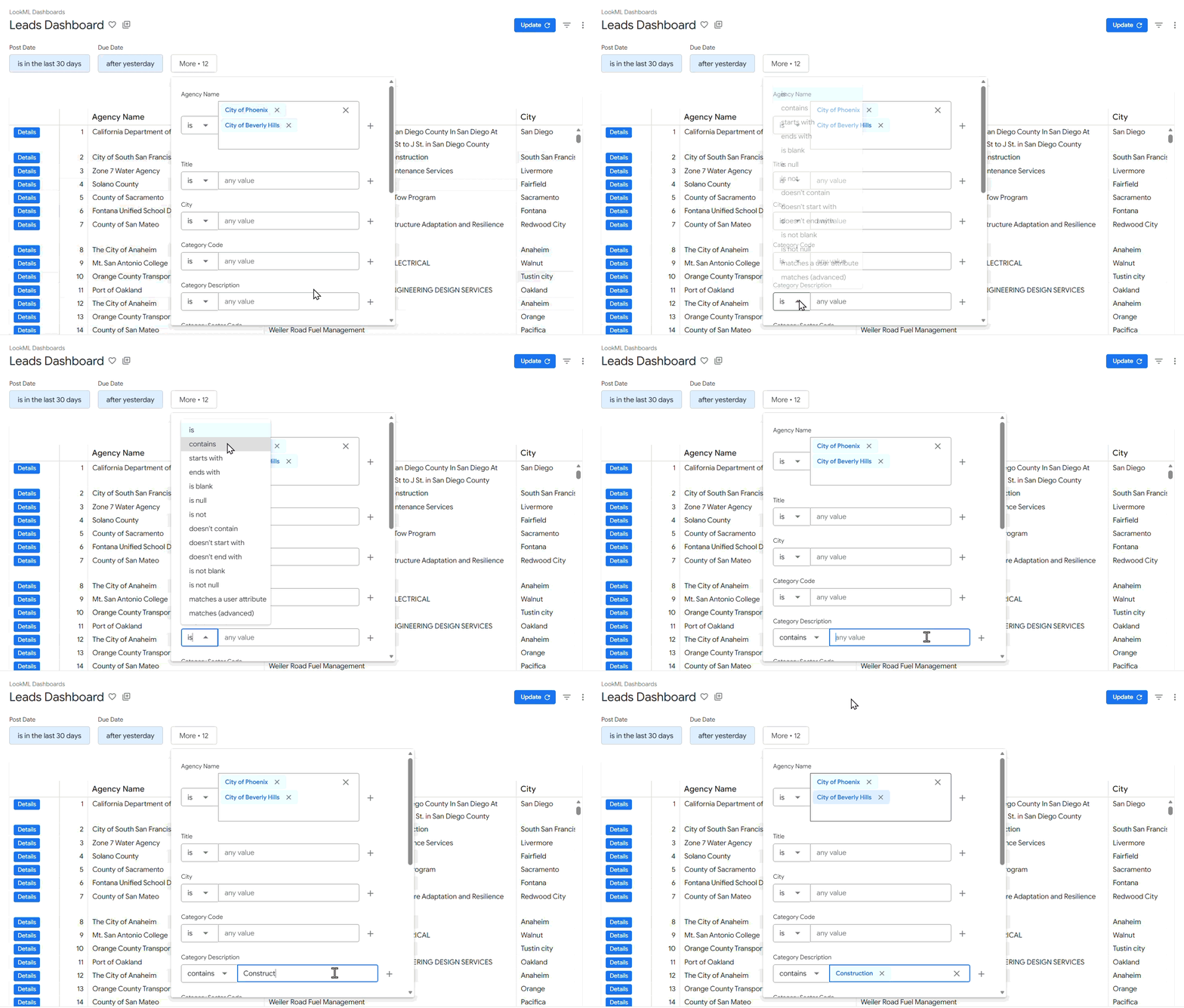
Figure 5: Applying Category filter
Step 5: Execute the Filters
- Click Update to execute the filters and view results.
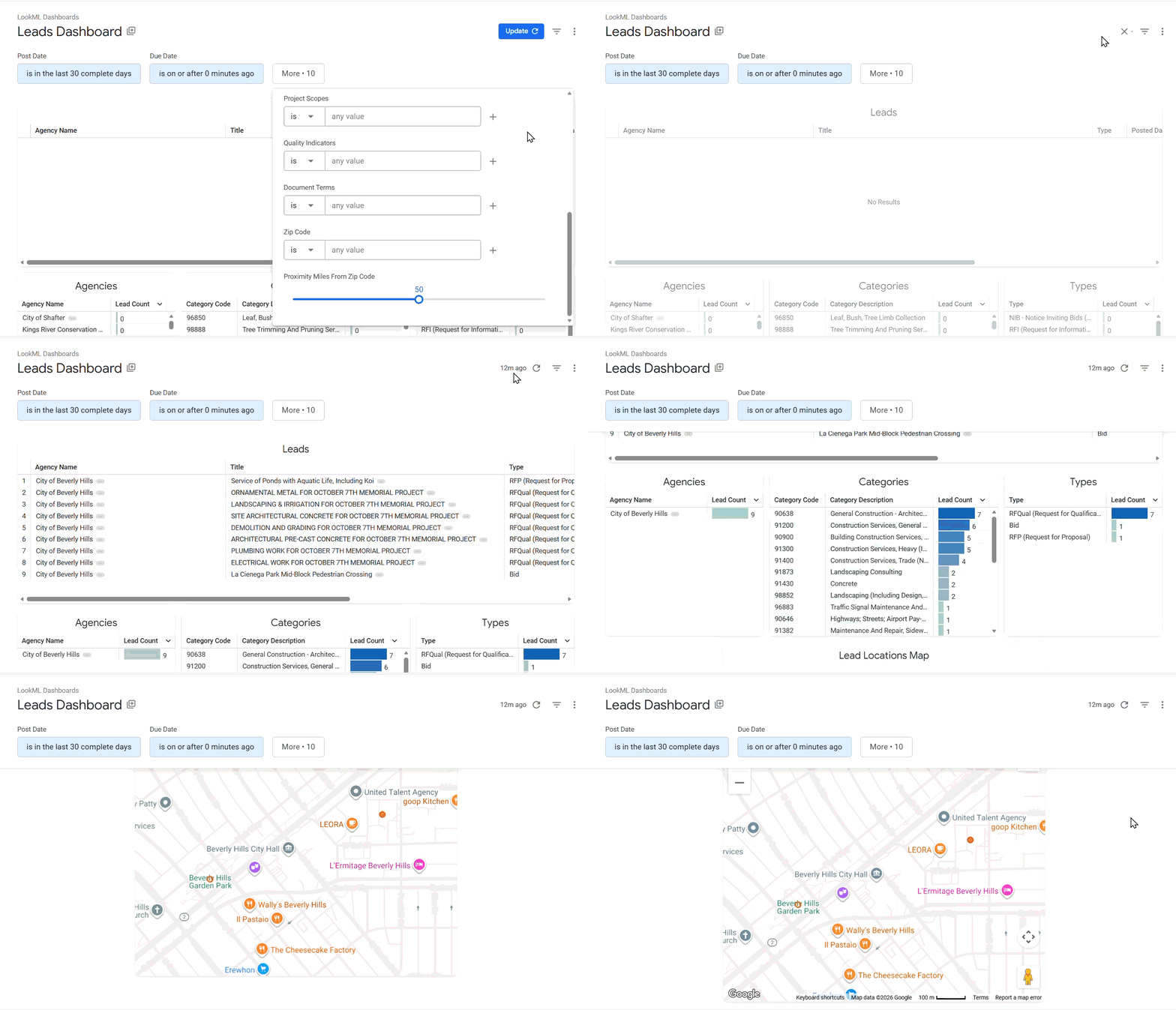
Figure 7: Updating filters
Important: All filters applied at the dashboard level use AND logic between different fields. This means all conditions must be satisfied simultaneously for a lead to appear in the filtered results.
Understanding Filter Operators
For advanced filter syntax, logical expressions, and operator behavior, see the official Looker documentation for filter expressions .
Date Filter Operators
Date filters (Posted Date, Due Date) provide advanced options for precise time-based filtering.
| Operator | Description | Example |
| is in the last | Finds records within a specified time period from now | Set to “10 complete days” to show leads posted in the last 10 days |
| is on the day | Matches a specific date | Select “03/15/2025” from the calendar to show leads posted on that exact date |
| is in range | Finds records between two dates | Set start date “03/01/2025” and end date “03/31/2025” to show leads posted in March 2025 |
| is before | Finds records before a specified date | Set to “10 days ago” (relative) or select “03/01/2025” (absolute) to show leads posted before that date |
| is on or after | Finds records on or after a specified date | Set to “03/01/2025” to show leads posted on or after March 1, 2025 |
| is in the year | Filters by a specific year | Enter “2025” to show all leads posted in 2025 |
| is in the month | Filters by a specific month and year | Select “March” and enter “2025” to show all leads posted in March 2025 |
| is this | Filters by current time period | Select “month” to show leads posted in the current month |
| is next | Filters by upcoming time period | Select “week” to show leads due next week |
| is previous | Filters by past time period | Select “month” to show leads posted last month |
| is | Flexible time-based filter | Enter “3 months ago” or “4 weeks from now” with specified units |
| is null | Finds records with no date value | Shows leads where the date field is empty |
| is any time | Shows all records regardless of date | Removes date restrictions from the filter |
| is not null | Finds records with any date value | Excludes leads where the date field is empty |
| matches a user attribute | Uses predefined user attributes | Select from attributes like timezone or locale settings |
| matches advanced | Allows custom value entry | Enter a specific value or expression for advanced filtering |
Time Unit Options: When using relative date operators, you can select from seconds, minutes, hours, days, weeks, months, quarters, or years.
Relative vs. Absolute: Many date operators offer both relative (e.g., “10 days ago”) and absolute (specific calendar date) options for maximum flexibility.
Text Filter Operators
Text filters (Agency Name, City, Category Code, Category Description, Title, Document Title, Zip Code) provide options for text-based searches.
| Operator | Description | Example |
| is | Matches exact text values | Enter “City of Phoenix” to show only leads from that specific agency |
| contains | Finds values that include the specified text | Enter “School” to match “Public School District” or “Elementary School” |
| starts with | Finds values beginning with specified text | Enter “City” to match “City of Phoenix” or “City of Beverly Hills” |
| ends with | Finds values ending with specified text | Enter “County” to match “Orange County” or “Los Angeles County” |
| is blank | Finds records with empty values | Shows leads where the field has no value |
| is null | Finds records with null values | Shows leads where the field is null |
| is not | Excludes exact text matches | Enter “City of Phoenix” to exclude that specific agency |
| doesn’t contain | Excludes values with specified text | Enter “School” to exclude all agencies containing “School” |
| doesn’t start with | Excludes values beginning with specified text | Enter “Town” to exclude agencies starting with “Town” |
| doesn’t end with | Excludes values ending with specified text | Enter “Department” to exclude agencies ending with “Department” |
| is not blank | Finds records with any value | Excludes leads where the field is empty |
| is not null | Finds records with non-null values | Excludes leads where the field is null |
| matches a user attribute | Uses account-level attributes | Select from First Name, Last Name, Email, Full Name, Timezone, Locale, or Number Format |
| matches advanced | Allows custom value entry | Enter specific values or expressions for advanced filtering |
Note: Operators like “is blank,” “is null,” “is not blank,” and “is not null” do not require additional value input.
Understanding Filter Logic
AND Logic Between Filters
All filter fields operate with AND logic at the top level. This means every condition must be met for a lead to appear in results.
Example: If you set Posted Date = “last 30 days” AND Agency Name = “City of Phoenix” AND Category = “Construction”, only leads that satisfy ALL three conditions will be displayed.
OR Logic Within Filters
Within a single filter field, you can create OR conditions using the + (plus) button.
Example: Agency Name = “City of Phoenix” OR “City of Beverly Hills” will show leads from either agency.
FAQs
Can I combine multiple date ranges in one filter?
Yes, use the + icon to add OR conditions within the Posted Date or Due Date filter.
What’s the difference between “is blank” and “is null”?
“is blank” checks for empty values and “is null” checks for null database values.
How do I clear all filters?
Click the Reset Filters option from the three-dot menu on the dashboard to remove all applied filters.
Can I save my filter configurations?
Filter states persist during your session. For permanently saved views, consider creating custom dashboards.
Contact Us
For further assistance, Contact Us.